File Requests
Securely request and receive files from anyone, directly into a designated folder, without requiring them to have an account.
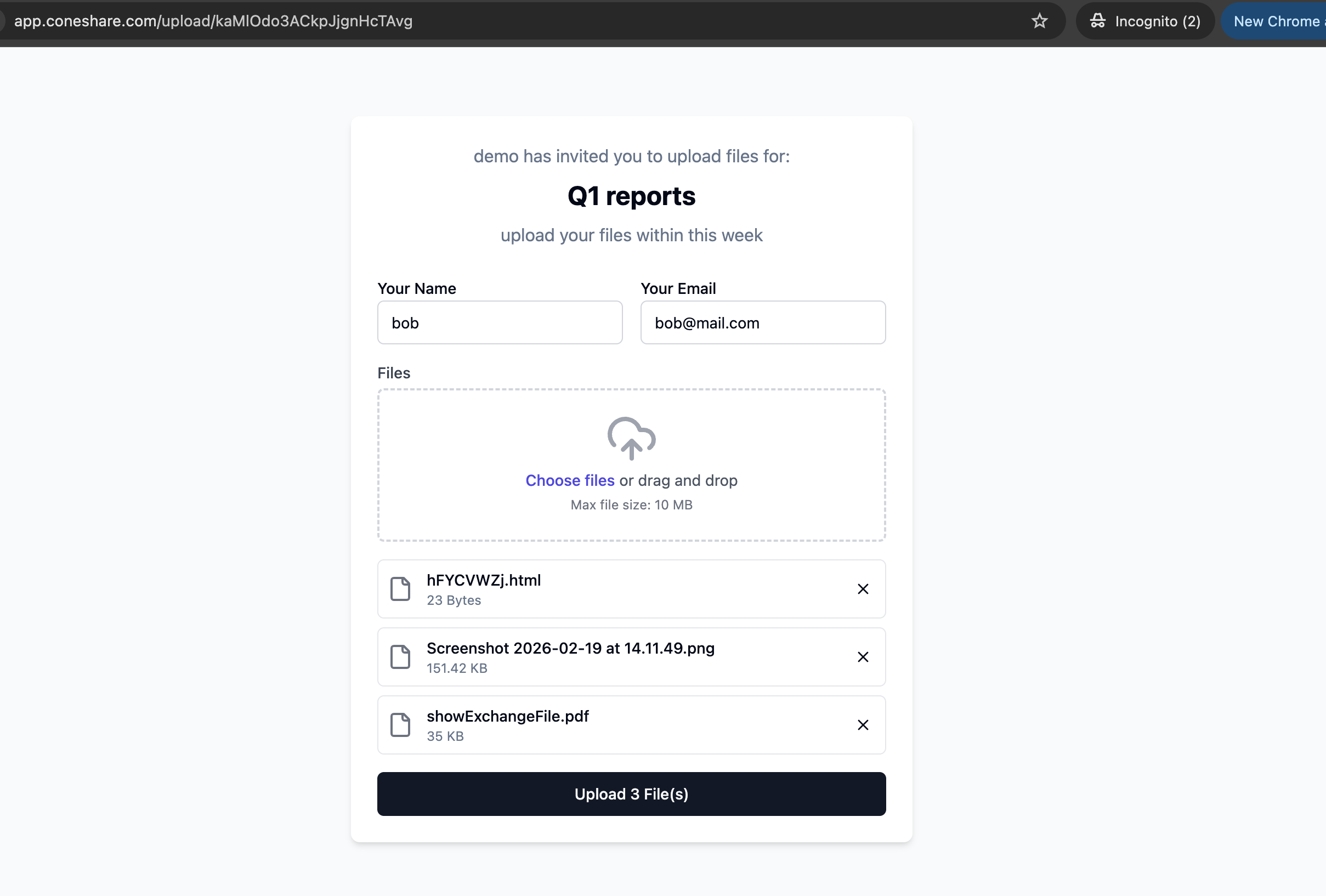
Streamline Content Collection
Create a secure upload link for any folder. External collaborators can use this link to upload files directly to you, simplifying how you collect documents from clients, partners, or vendors.
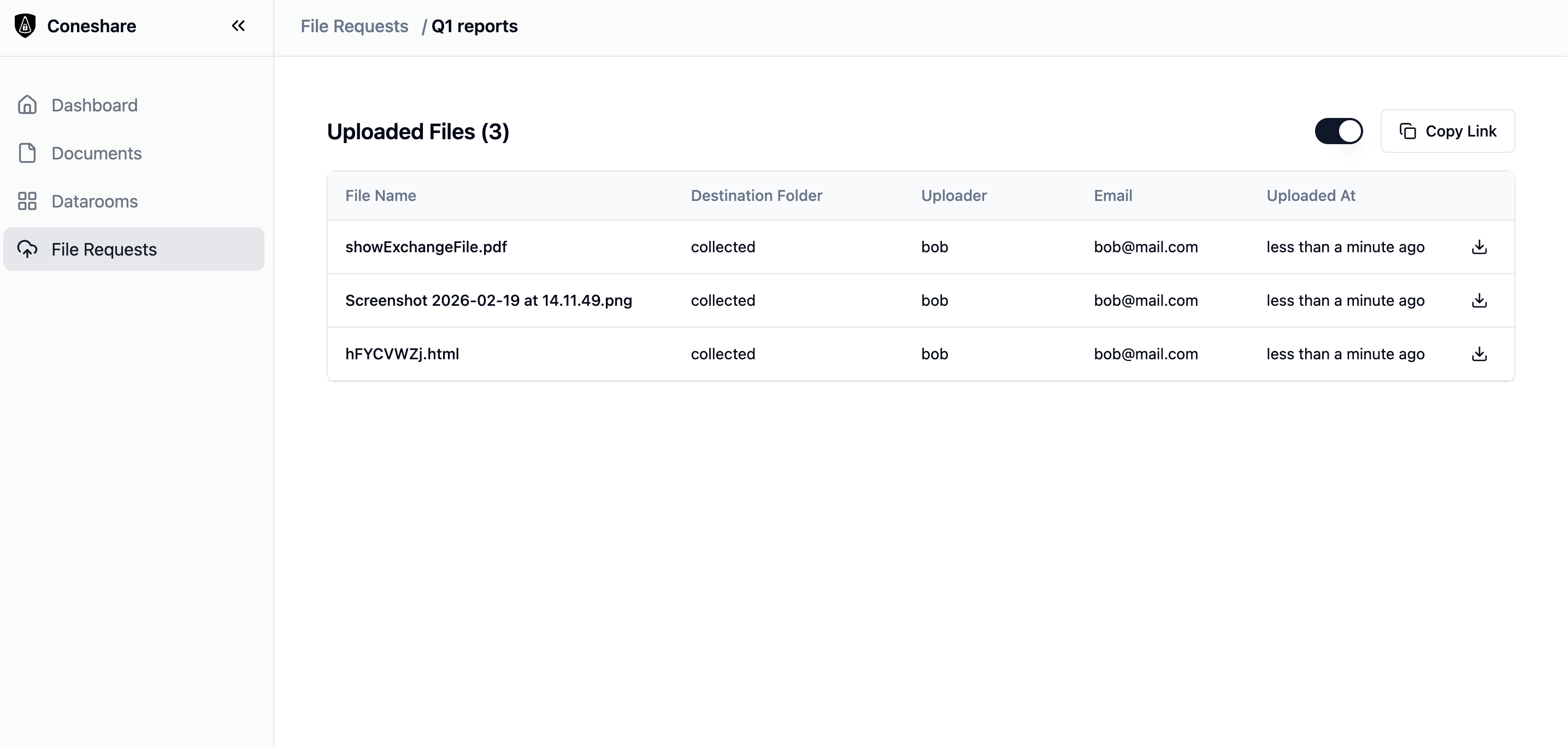
Track Every Submission
The external uploader's name and email are automatically captured and displayed alongside the file, so you always know who uploaded what. All files are automatically owned by you, integrating seamlessly into your existing library.
Typical Workflow
- 1Create a file request link for the target folder.
- 2External users upload files without creating accounts.
- 3Coneshare captures uploader identity on each submission.
- 4Team processes inbound files with clear provenance context.
Related Use Cases
Next Step
See this feature live in Coneshare
Explore the demo environment and see how real-time activity and automation work together in practice.